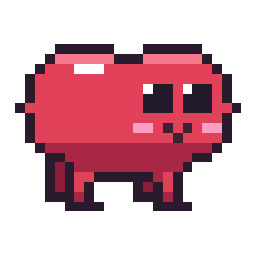
A tiny pixel-art jellybean who lives on your desktop. Pip trots about on four stubby legs, climbs the edges of your screen, naps when you wander off, and keeps a gentle eye on your breaks, your Pomodoros and whether you have had any water lately.
He is a desktop pet, not a productivity nag. He will never block your screen, never steal focus, and never appear in Alt+Tab (or the Dock and ⌘-Tab on a Mac).
Download · Install · Using Pip · Troubleshooting · For developers
Download
| Your computer | Download | Then |
|---|---|---|
| Windows 10 or 11 | Pip-Setup-1.2.0.exe | Install on Windows |
| Mac (macOS 12 or later, Apple silicon or Intel) | Pip-1.2.0-universal.dmg | Install on a Mac |
| Linux | Not supported. You can still run him from source. |
Prefer not to install anything on Windows? Pip-Portable-1.2.0.exe is a single file that runs wherever you put it.
Every version, with what changed in each, is on the releases page.
Installing Pip
On Windows
- Double-click
Pip-Setup-1.2.0.exeonce it has downloaded. It is the whole installer, so there is nothing to unzip. If your browser says the file is not commonly downloaded, choose Keep (in Edge: … → Keep → Show more → Keep anyway). - Windows will almost certainly show a blue "Windows protected your PC" box. This is SmartScreen reacting to an installer that has not been code-signed — signing certificates cost money and this one is unsigned. Click More info, then Run anyway.
- The installer needs no administrator rights: it installs for your user account only, adds a desktop and Start menu shortcut, and launches Pip when it finishes.
- Pip appears in the system tray. He also starts automatically when you sign in to Windows — you can turn that off in Settings.
To remove Pip: Settings → Apps → Installed apps → Pip → Uninstall, the same as any other Windows app.
The portable build, Pip-Portable-1.2.0.exe, needs no installing: put it
anywhere and double-click it. It never registers itself to launch at login.
On a Mac
- Open
Pip-1.2.0-universal.dmgand drag Pip onto the Applications folder. It is one universal file that runs on Apple silicon and Intel alike. - Start Pip from Launchpad or Spotlight. The first time, macOS says it could not verify Pip, because he is a free app that is not registered with Apple. Click Done (not Move to Trash).
- Open System Settings → Privacy & Security, scroll down to the message about Pip and click Open Anyway. You only do this once. On macOS before Sequoia it is quicker: Control-click Pip in Applications, choose Open, then Open again.
- Pip lives in the menu bar at the top right. He also starts when you log in — you can turn that off in Settings.
To remove Pip, quit him from his menu and drag Pip from Applications to the Trash.
First run
Pip drops in from the top of the screen, lands with a squash, waves a front leg and introduces himself over a few speech bubbles. After that he gets on with his day.
Using Pip
| You do | Pip does |
|---|---|
| Hover over him for a second | Leans into it, hearts pop |
| Click him | A happy reaction or a passing remark |
| Double-click him | Eats a snack |
| Click him five times fast | Puffs up and scoots off in a huff |
| Drag him | Dangles with all four legs paddling. Set him down gently and he carries on; throw him, or drop him from high up, and he tumbles, sees stars and shakes off the dizziness |
| Drag him onto another monitor | He moves over and drops in under the pointer |
| Right-click him (Control-click on a Mac) | The full menu |
| Move the mouse sharply near him | Startles him |
| Wander off for five minutes | He plays alone for a while, then curls up and sleeps. He wakes and greets you within a second of you coming back |
When Pip trots into the edge of the screen he sometimes climbs it, hangs for a moment and drops off. Otherwise he turns round and carries on.
He dresses up for the time of year: bubblegum for the first fortnight of February, pumpkin all October and candy cane all December. He changes back to your flavour afterwards. Pick any flavour mid-season and he keeps it, or turn Seasonal flavors off in Settings.
Settings also keeps a four-week calendar: one square per day, lit when you finished a Pomodoro or logged a glass of water and brighter the more Pomodoros you did, with this week's totals and your current day streak. Hover a square for that day's numbers.
Set a daily water goal in Settings (eight glasses unless you change it, 0 for none) and Pip dances when the glass that gets you there goes down. While a Pomodoro runs, Settings counts down the time left, and during a break you can Skip break from either menu to get straight back to work. If you have hidden Pip, his water reminders arrive as notifications instead.
The tray icon's right-click menu and Pip's right-click menu are the same: Start/Stop Pomodoro, Skip break (only during a break), I drank water, Feed Pip, Call Pip, Quiet mode for 1 hour, Show/Hide Pip, Reset position, Settings, Quit. Left-clicking the tray icon shows or hides him. On a Mac the icon is in the menu bar, and any click on it opens the menu.
Pip only quits from the Quit item. Closing the settings window leaves him running in the tray.
Troubleshooting
I can't open the download. Windows and macOS both warn about apps that are not signed with a paid certificate. Follow Installing Pip for your system: More info → Run anyway on Windows, Open Anyway in Privacy & Security on a Mac.
Pip has a black box around him. Some graphics drivers cannot composite a transparent always-on-top window. Open Settings → Behaviour → Compatibility mode, then quit and reopen Pip. That turns off hardware acceleration on the next launch, which fixes it at a small cost in CPU.
Pip has disappeared. Use Reset position from the tray menu. He will drop back in from the top of the display he was last on, with the overlay refitted to that display's work area. If that monitor has been unplugged, Pip falls back to the primary one.
Pip falls asleep while I am watching a video. Pip measures activity with the system idle timer, which counts keyboard and mouse input. Watching a video without touching anything looks exactly like being away, so after five minutes he curls up. Nudge the mouse and he wakes and greets you. There is no setting for this — the five-minute threshold is fixed, and the activity level only changes how often he wanders, not when he sleeps. If it bothers you, hide him from the tray while you watch.
Pip changed colour on his own. That is a seasonal flavour, and he changes back when the season ends. To keep your own flavour, pick it again in Settings (he keeps it for the rest of the season), or turn off Seasonal flavors.
Pip is in the way. Drag him somewhere else, or Hide Pip from the tray. Quiet mode for 1 hour keeps him around but stops the wandering and the speech bubbles.
Where are the logs?
%APPDATA%\Pip\logs\pip.log on Windows, or
~/Library/Application Support/Pip/logs/pip.log on a Mac, rotating at about
1 MB. npm run dev uses Pip-dev and npm run smoke uses Pip-smoke next
to it, so neither can disturb your real settings or stats.
How do I start over?
Quit Pip and delete %APPDATA%\Pip (Windows) or
~/Library/Application Support/Pip (Mac). Everything he knows lives in that
one folder, and he will run first-time onboarding again next launch.
Something else is wrong. Open an issue and say what you saw. The log file above helps.
A note on what Pip is not
Pip does not phone home, has no account, no telemetry and no network access of
any kind. Everything he knows lives in one JSON file, pip-data.json, in the
folder above, and you can delete it at any time.
For developers
Everything below is for working on Pip's code. You do not need any of it to use him.
Running from source
See docs/SETUP.md for the full walk-through on each
operating system, including building Pip.app on a Mac with
npm run dist:mac. A copy run from source is always in dev mode, described
below, so npm start and npm run dev behave the same.
npm install
npm start
npm 11 prints a warning that electron-winstaller has an install script it
has not run. That is expected and harmless: it is a transitive dependency of
electron-builder used for Squirrel installers, which Pip does not build. Both
npm start and npm run dist work without approving it. Electron itself no
longer uses an install script — it fetches its binary on first use, so the
first npm start after a clean install pauses briefly to download it.
Dev mode divides every work timer by 60 (a 25-minute Pomodoro takes 25 seconds) while animations keep their real length, so every reaction can still be seen. It also makes idle behaviours far more frequent, uses a separate settings folder so you do not pollute your real stats, registers no login item, and adds a Debug panel to the menus:
npm run dev
The debug panel shows the current state, clip, mood and every timer, and lets you force any state, clip or flavour, or push the clock forward ten minutes.
The checks
npm test
npm run smoke
npm test runs the unit tests on Node's built-in runner — state priority, work
accumulation and break resets, Pomodoro transitions and restart recovery, water
scheduling and the midnight reset, mood, click patterns, physics, storage and
settings validation, seasonal flavours, the streak calendar's day history,
sprite validation and palette completeness. It also runs:
- a wiring check that fails if any animation clip, speech situation or particle kind is unreachable, if an IPC channel is known to only one side, or if a menu action has no handler — the kind of dead wiring that reads fine in a single file;
- a scope check that loads the overlay's scripts into one shared global scope, the way the browser does, and fails if any of them can overwrite another's names;
test/main.test.js, which runs the realsrc/main.jsagainst a fake Electron on a mock clock and drives it through the renderer's own IPC channels. It covers clicks, drops, reactions, quiet mode, waking from sleep, crash recovery and settings validation. That glue is where most of Pip's bugs have lived.
CI runs npm test on every pull request and every push to main.
npm run smoke launches the real app with --smoke: it draws its first
frame, plays every animation clip in every flavour offscreen, checks that every
particle kind actually paints pixels and that the walls hold, opens and closes
the settings window, and exits 0. Any exception, or twenty seconds of silence,
fails it (SMOKE_TIMEOUT_MS allows longer, for a machine that is emulating
another chip). This is the check that proves Pip actually runs, as opposed to
merely compiling.
Building the installers
npm run dist
Produces dist/Pip-Setup-1.2.0.exe and dist/Pip-Portable-1.2.0.exe. Icons are
regenerated automatically first. On a Mac, npm run dist:mac builds Pip.app
in a .dmg; docs/SETUP.md has the details.
You do not have to upload them yourself. Publishing a release on GitHub
starts the Release workflow, which builds the Windows installer and
portable build and a universal Mac .dmg from that release's tag and
attaches them to it. To fill a release that already exists, open
Actions → Release → Run workflow and give its tag (for example
v1.2.0). Remember to update the version in the Download
links above when you bump it.
How Pip is put together
Electron, plain HTML/CSS/JavaScript. No framework, no bundler, and no native
modules — electron and electron-builder are the only dependencies, both dev
only.
The main process decides what Pip is doing. Everything in src/main/ is a
pure CommonJS module with no Electron imports: the clock, the randomness and
all thresholds are passed in, which is what makes them directly testable.
The renderer decides what that looks like. Everything in src/renderer/ is
a plain script that attaches to window.Pip and exports itself under
module.exports, so the same file runs in the browser context and under
require() in tests.
src/main.js        lifecycle, windows, tray, polling, power events, IPC
src/preload.js     the only bridge; an explicit channel allow-list
src/main/          brain, pomodoro, reminders, mood, clicks, storage, logger
src/renderer/      palettes, sprites, animations, physics, particles,
                   bubbles, lines, renderer
src/settings/      the settings window
src/debug/         the dev-mode debug panel
assets/            app and tray icons (generated)
build/             installer resources for electron-builder
tools/             the sprite authoring tools
scripts/           icon generation, the smoke test
test/              the unit tests
.github/           CI, the release workflow, issue and PR templates
ARCHITECTURE.md is the full contract: every exported signature, every IPC
channel and payload, the sprite format, and the state and clip name lists.
Coding agents start at AGENTS.md.
A few things worth knowing:
- The overlay is one window covering the whole work area, transparent and always on top. It ignores the mouse everywhere except Pip himself — the renderer hit-tests the cursor against the alpha of the current sprite frame and only then asks the main process to make the window solid.
- Every timer is derived from a stored start timestamp, never from counting ticks, so suspending your machine mid-Pomodoro does not corrupt it.
- Activity is measured with
powerMonitor.getSystemIdleTime()polled every ten seconds, and every second while Pip sleeps so he is up as soon as you are back. There are no keyloggers and no input hooks. - Every overlay script is wrapped in its own function scope. They are plain
<script>tags sharing one global scope, and two of them once defined aclampof their own.test/scope.test.jskeeps that from happening again. - Frames are pre-rendered to offscreen canvases at startup for the current flavour and scale, and re-rendered when either changes.
Extending Pip
Add an animation
- Add the pose(s) to
tools/frame-specs.js. A spec is a small object describing the body silhouette, the four leg lifts, the face and any props — the file documents the fields at the top. - Preview it as text while you tune:
node tools/gen-sprites.js --preview my_frame_0 - Regenerate the sprite data:
This rewritesnpm run spritessrc/renderer/sprites.jsas literal 32×32 character grids. You can also hand-edit that file directly — it is plain readable data, and it is what runs. Just fold hand edits back intoframe-specs.jsif you want to keep using the generator. - Add a clip to
src/renderer/animations.js:myclip: { frames: ['my_frame_0', 'my_frame_1'], durations: [200, 200], loop: false, next: 'idle' } npm testwill tell you if the frames are malformed, use an unknown palette key, lost the gloss highlight, or if the clip points at a frame that does not exist.
Add a reaction
Reactions are decided in src/main/brain.js. The priority order at the top of
that file is the contract — held > sleeping > celebrating > thirsty > exhausted > drowsy > reaction > idle — so put your case where it belongs in
that chain. If it is triggered by something the renderer notices (the pointer,
a collision), send it up on one of the renderer → main channels listed in
ARCHITECTURE.md §8 and add the channel to the allow-list in src/preload.js.
Add a speech line
Open src/renderer/lines.js and add to the relevant situation's array. Every
situation needs at least six variants and a test enforces it. Lines can be
gated by mood and by hour, so a late-night or low-mood variant is just another
entry with a condition. Pip never repeats the same line twice in a row.
Add a flavor
src/renderer/palettes.js, the FLAVORS object:
bubblegum: { B: '#f06ec0', D: '#b23a86', L: '#ff9ad6', F: '#8f2668', H: '#ffffff' }
That is all. Flavours are palette swaps over the same frames, so it appears in
the settings picker with a live preview automatically. To hand it out for a
season as well, add a row to SEASONS in src/main/seasons.js. Only the body keys
(B D L F H) may be overridden — the outline, eyes, blush and mouth are shared
so Pip stays recognisably Pip.
Three ways to grow Pip
- Friends. Let a second jellybean spawn after a long streak — two Pips that notice each other, trot over, and sit together. Most of the work is already there: the brain is pure, so running two instances of it is mostly a matter of giving each body its own state.
- A toy box. Pip already juggles a ball and reads a book. Let those become real objects you can drag onto the desktop and leave there — a ball he chases, a bed he sleeps in, a mug that fills when you log water.
- Focus-aware reactions. Watch the foreground window title and let Pip respond to what you are doing rather than just whether you are doing it — a tiny hard hat when a build is running, a cheer when a long compile ends.